
STAR / SMCD / OPDB - NOAA Products Validation System (NPROVS) - NPROVS
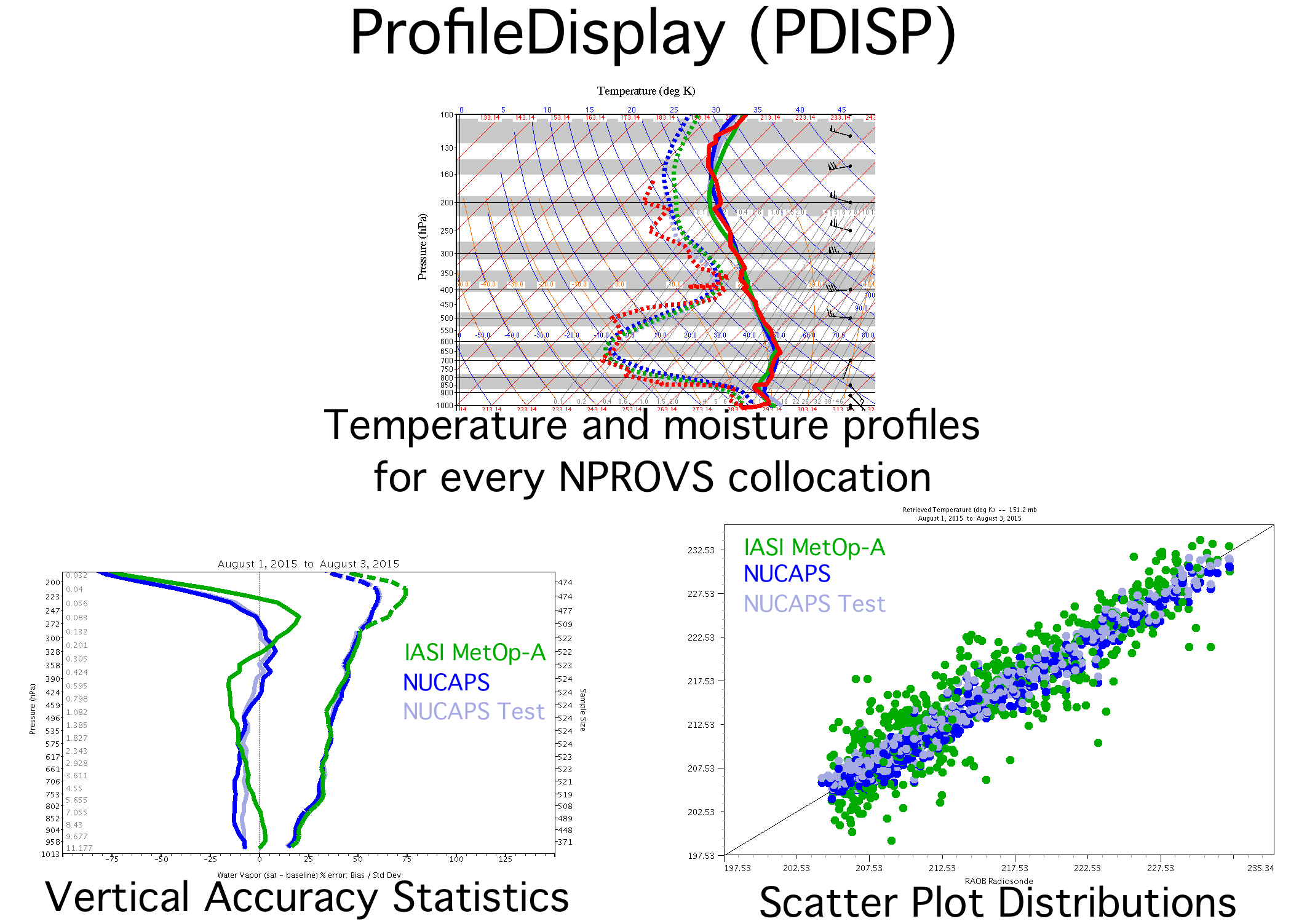
PDISP Overview - click to enlarge
Download the program
Last updated 11/24/2025
Click here to download ProfileDisplay (Version 7.0)
Click here to download the previous version of ProfileDisplay (6.69)
*** NOTE: Beginning with version 6.44, it is necessary to include two external libaries within a "lib" directory that is in the same directory as ProfileDisplay.jar. If these libaries are not present, ProfileDisplay will create them and then display a dialog box that will say that the program needs to be restarted. At that point, close the dialog box and restart the program to resume normal operation.
It may be necessary to run the program twice to install the libraries. In this case, the program should run normally beginning with the third run.
ProfileDisplay Quick Start Guide
Download the files
Daily collocation files for the NPROVS conventional and the NPROVS special systems are available for the past 5 years. Each file is a netCDF file that can be read by ProfileDisplay.
Data Site for collocation files
ProfileDisplay Overview
The NPROVS ProfileDisplay (PDISP) program is used to view data from a variety of satellite and other processing systems that have all been collocated to a single baseline system (typically radiosondes). The input into ProfileDisplay is an NPROVS collocation file. The collocation file typcially contains one ore more days of collocations. Each collocation contains data from a baseline system, usually radiosondes, and data from other processing systems that are within distance and time limits.
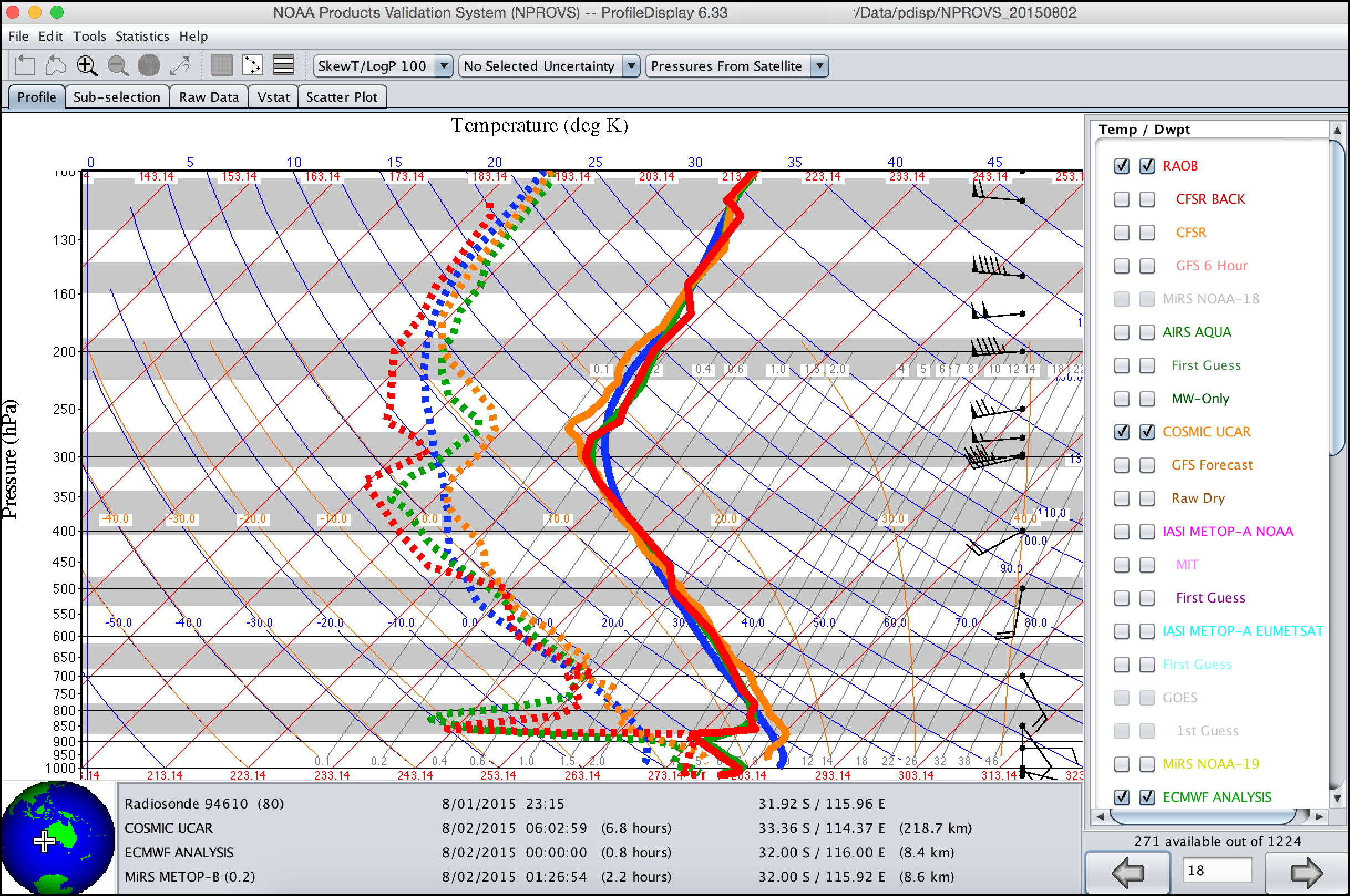
PDISP Profile Graph panel - click to enlarge
Profile Graph
The profile graph is the heart of ProfileDisplay. Temperature (solid line) and moisture (dashed line) profiles are display on a graph that can be changed among several XY graph options and several Skew-T Log-P options. For any collocation, profiles from every system that has been collocated to the baseline system can be displayed.
Information is displayed about the closeness (time and distance) between each systems and the baseline system.
Arrow buttons on the lower right provide the ability to switch between collocations.
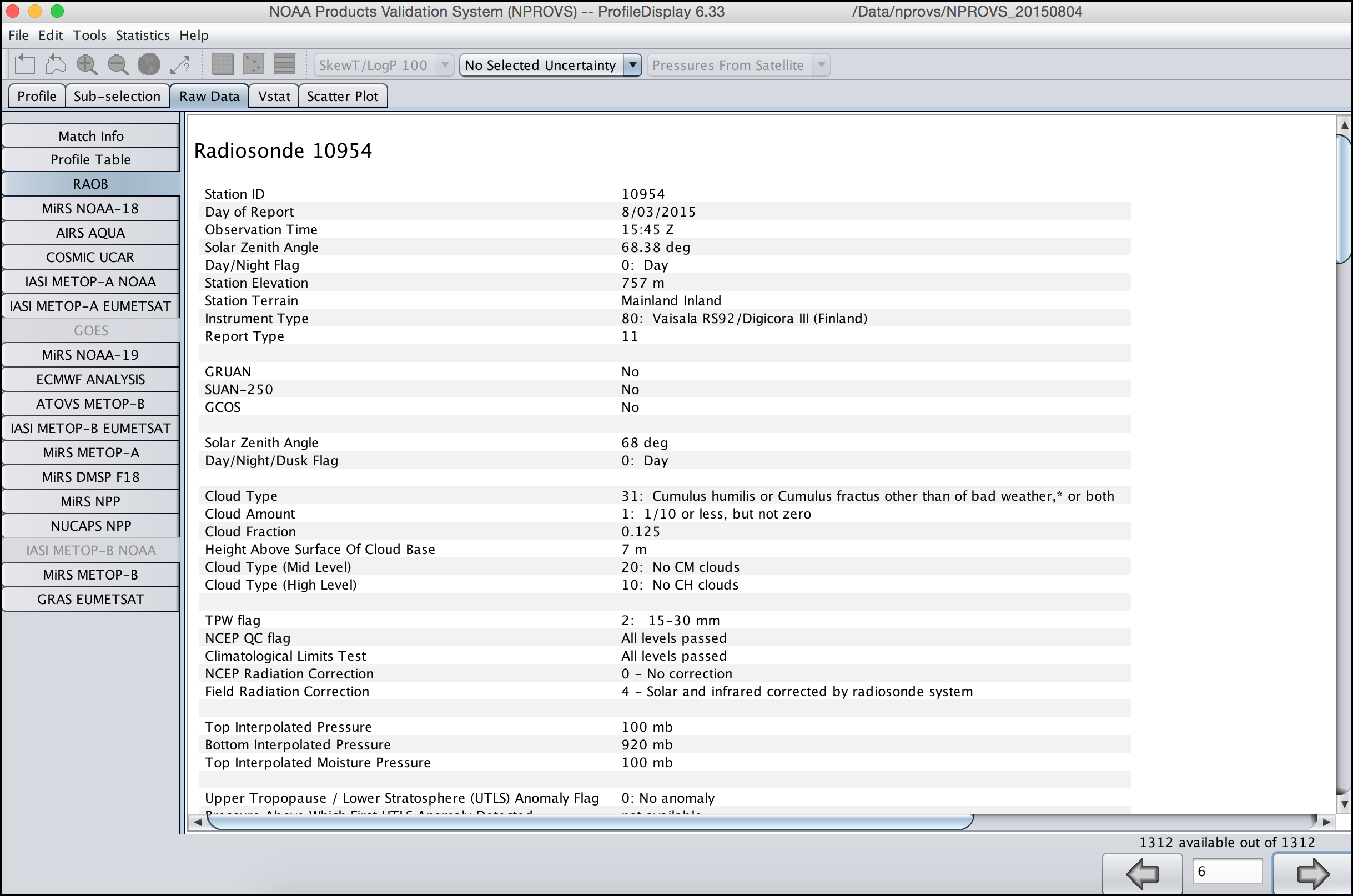
PDISP Raw Data panel - click to enlarge
Raw Data
For every collocation, raw data from every collocated system can be displayed. All data that is produced by the system is shown as well as the raw data values from the temperature and moisture profiles.
The raw data also contains a table showing raw temperature and moisture data values for every
profile from every system at every pressure level.
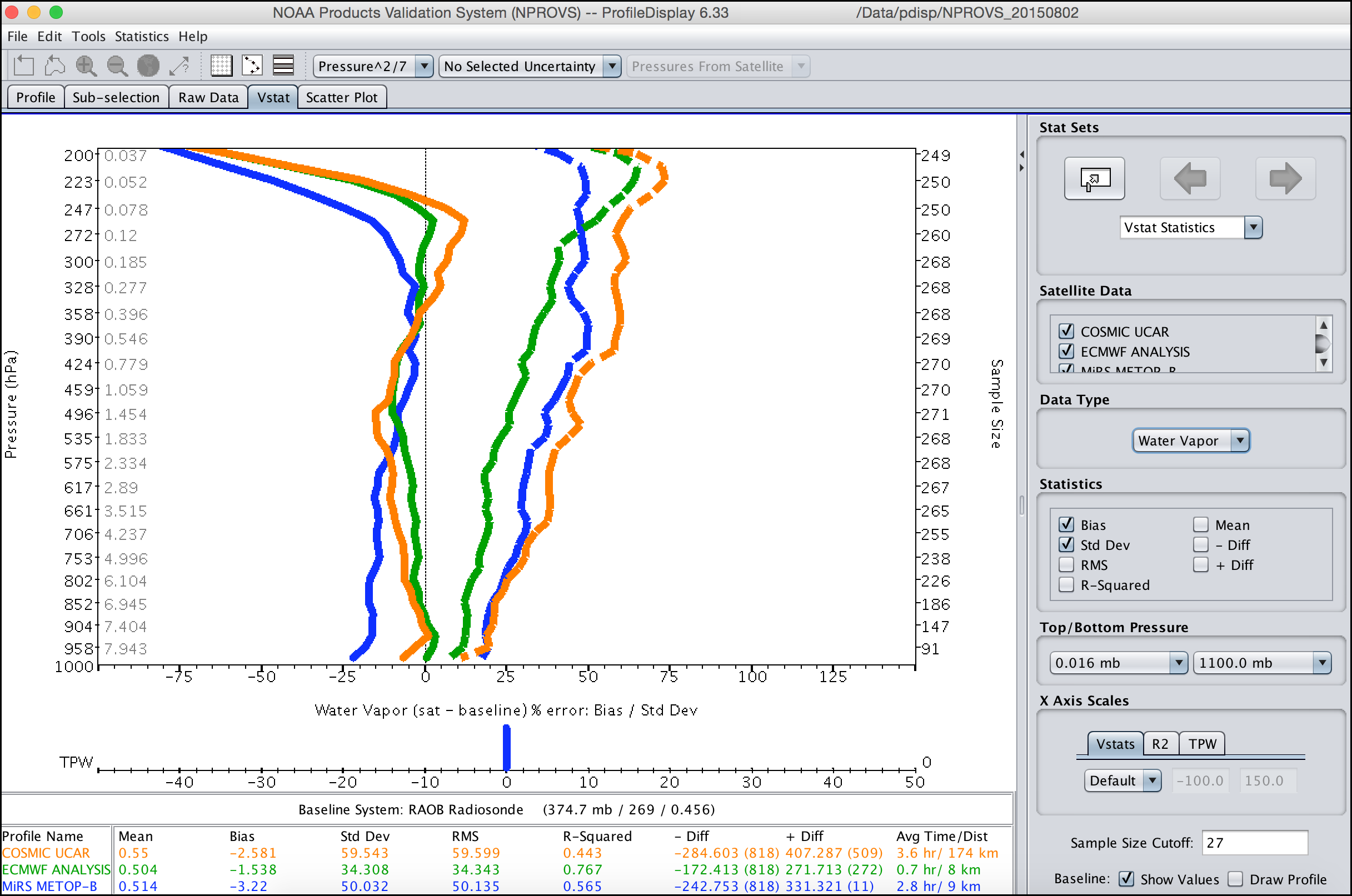
PDISP Vertical Statistics - click to enlarge
Vertical Accuracy Statistics
Vertical accuracy statistics for temperature and moisture can be generated using all
available collocations or a sub-selection of collocations. The resulting graph is capable
of displaying bias, standard deviation, RMS, R-squared, mean, and the largest and smallest
differences at every pressure level or layer.
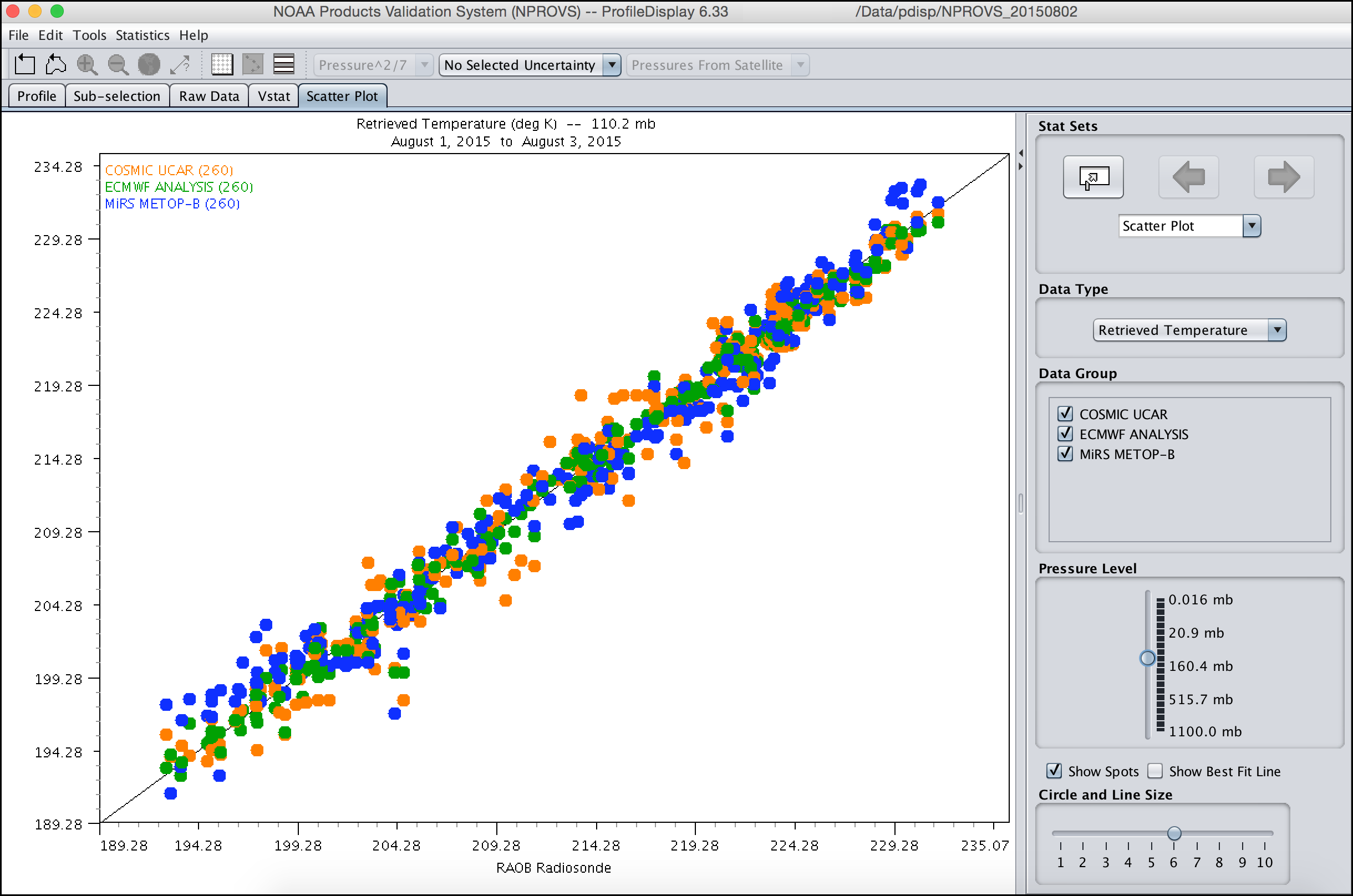
PDISP Scatter Plot panel - click to enlarge
Scatter Plot
Scatter plot diagrams can be generated at every pressure level or layer to show the distributions of system minus baseline differences for every collocation and every system. Outliers can be quickly identified to view potentially questionable data.
An additional feature of the scatter plot is the ability to compute and display a best fit line for every system as well as the corresponded slopes and intercepts.
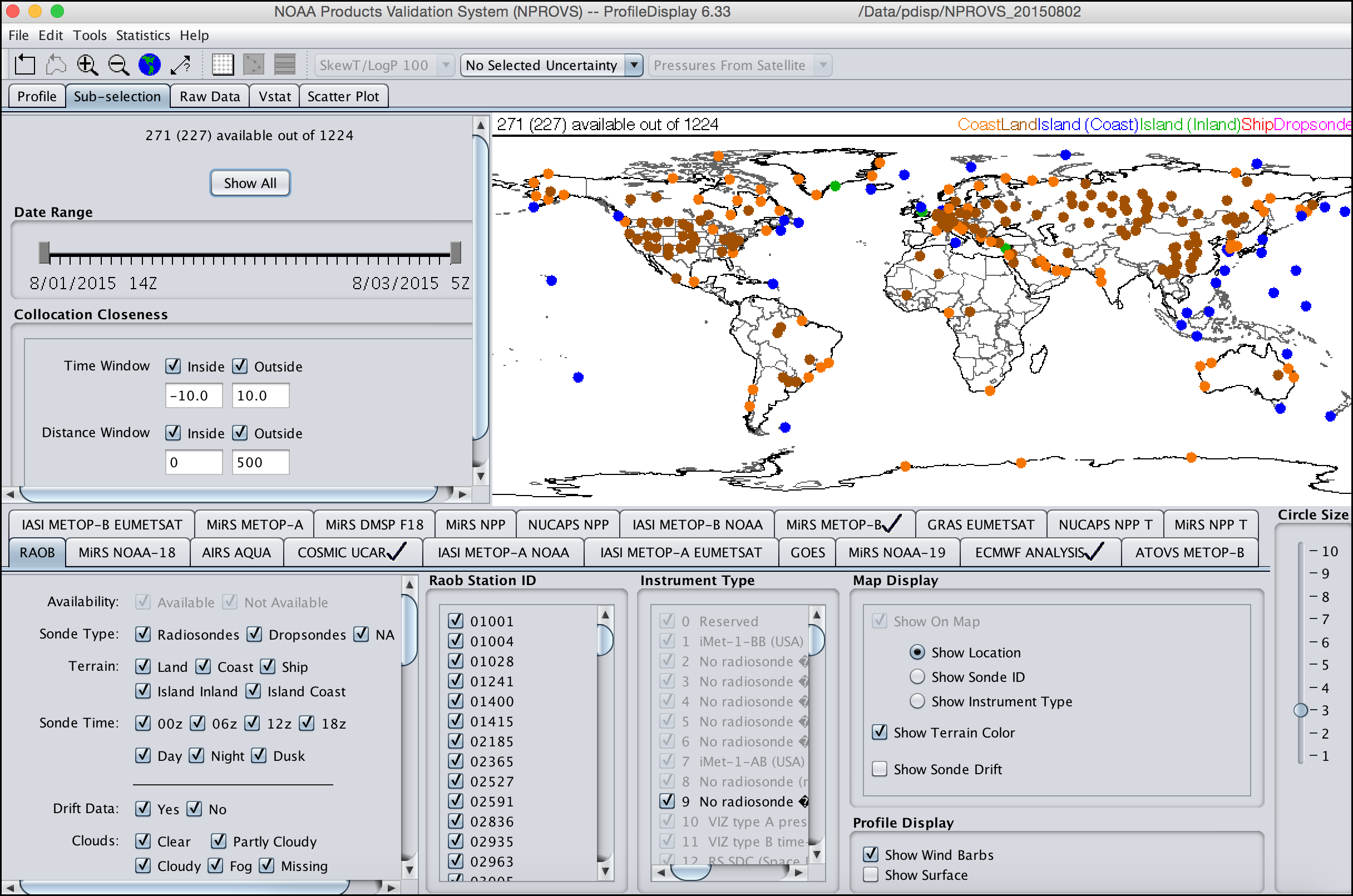
PDISP Data Filtering panel - click to enlarge
Data Filtering
Data filtering is perhaps the most powerful feature of ProfileDisplay. By defaults, all collocations in a file are available for viewing and when generated vertical statistics and scatter plots. By applying data filtering, it is possible to create a subset of data to display and from which to generate statistics.
Every system contains a unique set of filtering options. When combined, the filtering options from all systems provides users with the ability to concentrate on a very specific set of data.
Installing and Running ProfileDisplay
ProfileDisplay is a Java program. As such, it can be run on any system on which Java has been installed including Windows, Mac OS X, Linux and others. Installing the program is typically as simple as copying the ProfileDisplay.jar file (linked above) to a folder on a local computer. The icon can then be double-clicked to run it.
More information about running PDISP can be found in the ProfileDisplay User's Guide and the ProfileDisplay Quick Start Guide